

We’ve all been there. You’re trying to send an important message, make a crucial call, or check your email, and suddenly your iPhone shows those dreaded words: “No Service.” One minute you have full bars, the next minute nothing. It’s frustrating, confusing, and always seems to happen at the worst possible time.
If you’re dealing with this problem in Adelaide, you’re definitely not alone. This network connection issue has become one of the most common complaints among iPhone users lately. Let’s break down why this happens and what you can do about it.
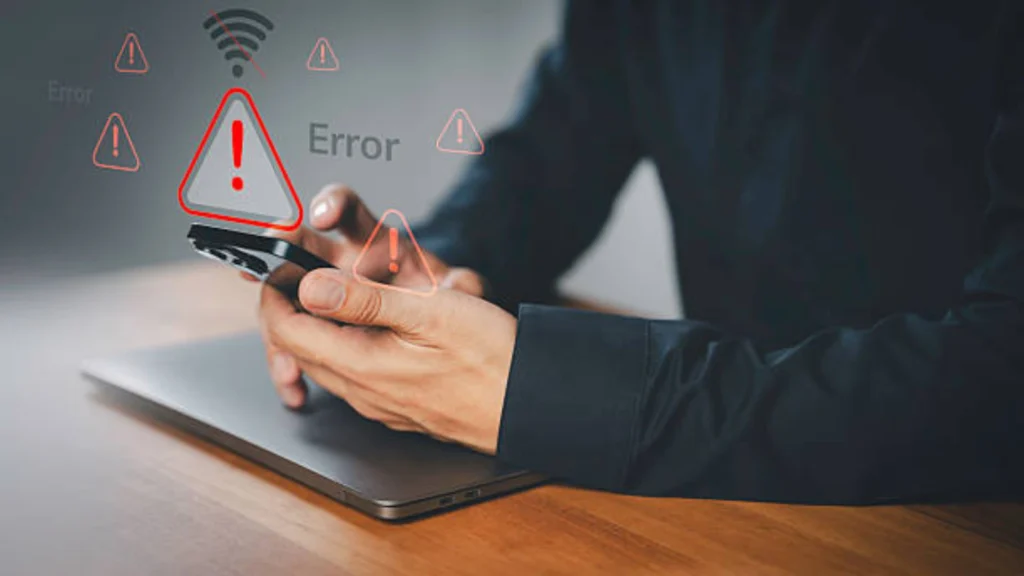
Understanding the Network Connection Problem
Your iPhone connects to cellular towers through a complex system of signals and frequencies. Think of it like a conversation between your phone and the nearest tower. When this conversation gets interrupted, you lose service.
The thing is, this problem has gotten worse over the past couple of years. Online forums like Reddit and Apple Support Communities are filled with frustrated users sharing their experiences. One user recently posted: “My iPhone 14 loses signal randomly throughout the day, even though I’m in the same spot where it worked fine yesterday.”
So what’s actually going on here? In many cases, these signal drops aren’t random at all. They can be caused by software glitches, antenna issues, or internal hardware wear problems that professional iPhone repair services can diagnose and fix before they turn into something more serious.
Common Reasons Your iPhone Loses Network Signal
Software Glitches and iOS Updates
Sometimes the problem isn’t with your phone’s hardware at all. Apple regularly releases iOS updates, and occasionally these updates can cause unexpected issues with network connectivity. It’s a bit like updating your computer and finding that your printer suddenly doesn’t work anymore.
After major iOS updates, many users report temporary signal problems. The phone’s software might need time to adjust, or there might be a bug that Apple needs to fix with a follow-up update.
SIM Card Issues
Your SIM card is the little chip that connects your phone to your carrier’s network. Over time, these cards can accumulate dust, get slightly dislodged, or even develop wear and tear. It’s easy to forget about something so small, but it plays a huge role in keeping you connected.
In Adelaide’s climate, where we experience everything from hot, dry summers to cooler, damp winters, these environmental changes can sometimes affect the SIM card’s connection inside your phone.
Carrier Settings Problems
Your iPhone needs to communicate with your mobile carrier using specific settings. These carrier settings occasionally need updates, just like your phone’s operating system. If these settings are outdated or corrupted, your connection can drop randomly.
Physical Damage to Antenna Components
iPhones have built-in antennas that receive and transmit signals. These antennas can be damaged by drops, water exposure, or general wear and tear. Even a small crack in the wrong place can interfere with signal reception.
How to Fix Network Connection Issues Yourself
Before you panic or rush to get professional help, there are several simple fixes you can try at home. These solutions work for many people and cost absolutely nothing.
Restart Your iPhone
Yes, we know “turn it off and on again” sounds too simple. But here’s the thing it actually works more often than you’d think. A restart clears temporary software glitches and refreshes your phone’s connection to the network. It’s often the first step recommended in professional software repair services because it quickly resolves minor system conflicts.
To restart properly, hold down the power button and volume button together, slide to power off, wait about 30 seconds, then turn it back on.
Toggle Airplane Mode
This quick trick forces your phone to disconnect and reconnect to the network. Just swipe down from the top right corner (or up from the bottom on older iPhones), tap the airplane icon, wait about 10 seconds, then tap it again to turn it off.
Check for iOS Updates
Head to Settings > General > Software Update. If there’s an update available, install it. Apple often fixes network bugs in their updates, though admittedly, sometimes they create new ones. Such is the world of technology.
Reset Network Settings
This is a more thorough solution. Go to Settings > General > Transfer or Reset iPhone > Reset > Reset Network Settings. Fair warning: this will erase your saved WiFi passwords, so make sure you know them before you do this.
Remove and Reinsert Your SIM Card
Turn off your iPhone first. Then use the SIM card tool (or a paperclip) to pop out the SIM tray. Take out the card, check it for any visible damage or dirt, wipe it gently with a clean cloth, and put it back in. Sometimes this simple action solves the problem immediately.
Update Carrier Settings
Go to Settings > General > About. If a carrier update is available, you’ll see a pop-up asking you to update. Always accept these updates—they’re designed to improve your connection.
When to Seek Professional Help
Sometimes, despite our best efforts, the problem persists. That’s when it’s time to consider professional repair services.
If you’ve tried all the basic fixes and your iPhone still loses connection regularly, there might be a hardware issue. This could include damaged antenna components, a faulty network chip, or problems with the phone’s logic board.
In Adelaide, Australia, in local repair shops like Sam Phone Repair we can diagnose these hardware issues properly. The advantage of going local is that technicians can often check your phone the same day and give you honest feedback about what’s wrong.
The Adelaide-Specific Angle
Living in Adelaide comes with unique challenges for phone connectivity. Our city has excellent coverage in inner suburbs, but some outer areas and certain buildings can create signal problems.
The Hills, for example, have patchy coverage with some carriers. If you frequently travel between areas with different signal strengths, your iPhone might struggle to switch between towers efficiently.
Additionally, some of the older buildings in the city center have thick walls that block signals. If you notice your connection drops mainly indoors, the building structure might be the culprit, not your phone.
What Experts Are Saying
According to various tech forums and mobile repair specialists, network connection problems have increased since the iPhone 12 series introduced 5G capability. The transition between 4G and 5G networks sometimes confuses the phone’s software, causing temporary signal loss.
One repair technician noted online, “We see this issue weekly. About 60% of the time it’s software-related and can be fixed with updates or resets. The other 40% requires hardware attention.” In some cases, especially when phones struggle to connect across different carriers or regions, professional network unlocking services can also help stabilize network access and improve compatibility.
There’s also discussion in tech communities about certain iPhone models being more prone to this issue than others. The iPhone 12 and iPhone 14 models seem to appear in complaints more frequently, though Apple hasn’t officially acknowledged any widespread defect.
Understanding Your Limitations (And Ours)
Let’s be honest here, network connectivity is complicated. There are aspects of this problem that even experienced technicians find tricky to diagnose. Sometimes the issue is with the carrier’s tower, not your phone. Other times, it’s a combination of factors that create the perfect storm of connectivity problems.
We don’t claim to have all the answers. Mobile technology evolves rapidly, and new issues emerge with each generation of iPhones. What we do know is that most connection problems fall into predictable patterns, and most can be solved with patience and the right approach.
Looking Ahead: What Might Change
The future of iPhone connectivity looks interesting. Apple is reportedly working on satellite connectivity features and improved antenna technology. The rollout of more 5G towers across Adelaide and Australia should also improve reliability.
However, as phones become more complex, new problems will likely emerge. The key is staying informed and knowing when to troubleshoot yourself versus when to seek help.
One thing that remains uncertain is how Apple will address these recurring issues. Will future iOS updates be more stable? Will hardware design improve? Only time will tell.
Final Thoughts
Losing a network connection on your iPhone is annoying, but it’s usually fixable. Start with the simple solutions: restart, toggle airplane mode, check for updates. If those don’t work, try the more involved fixes like resetting network settings or checking your SIM card.
If you’re in Adelaide and nothing seems to work, don’t suffer in silence. Sometimes you need expert eyes on the problem. The good news is that most network issues can be resolved, either through software fixes or affordable repairs.
Remember, your phone is a complex piece of technology. Treat it well, keep it updated, and don’t be afraid to seek help when needed. After all, staying connected is too important to leave to chance.
For more helpful tips and professional repair services, you can choose (Sam Phone Repair)
Frequently Asked Questions
Q: How long should I wait before seeking professional repair for network issues?
A: If you’ve tried all the basic troubleshooting steps and the problem persists for more than a week, it’s worth getting a professional diagnosis. Ongoing network issues usually indicate a deeper problem.
Q: Will resetting network settings delete my photos or apps?
A: No, resetting network settings only removes WiFi passwords, VPN settings, and cellular settings. Your photos, apps, and personal data remain safe.
Q: Can weather affect my iPhone’s signal strength?
A: Yes, extreme weather can temporarily affect signal strength, but it shouldn’t cause your phone to completely lose service. If weather consistently affects your connection, there might be an underlying issue.
Q: Is this problem covered under Apple’s warranty?
A: It depends on the cause. If it’s a manufacturing defect and your phone is still under warranty, Apple should cover it. However, damage from drops or water exposure typically isn’t covered.