

You pick up your Samsung phone, press the power button, and… nothing. No vibration, no Samsung logo, no light at all. Your heart sinks a little, especially if you have important photos, messages, or work files on there that you have not backed up.
This is one of the most common mobile issues people experience, and the good news is that it does not always mean your phone is permanently damaged. In fact, most of the time, a Samsung that refuses to turn on can be fixed at home with a few simple steps, and your data can often be recovered fully.
This guide walks you through everything you need to know, from why it happens to how to fix it, and what to do if the problem goes deeper than a quick restart. If basic troubleshooting doesn’t solve the issue, seeking professional help for Samsung phone repair in Adelaide can ensure your device is properly diagnosed and restored without risking further damage.
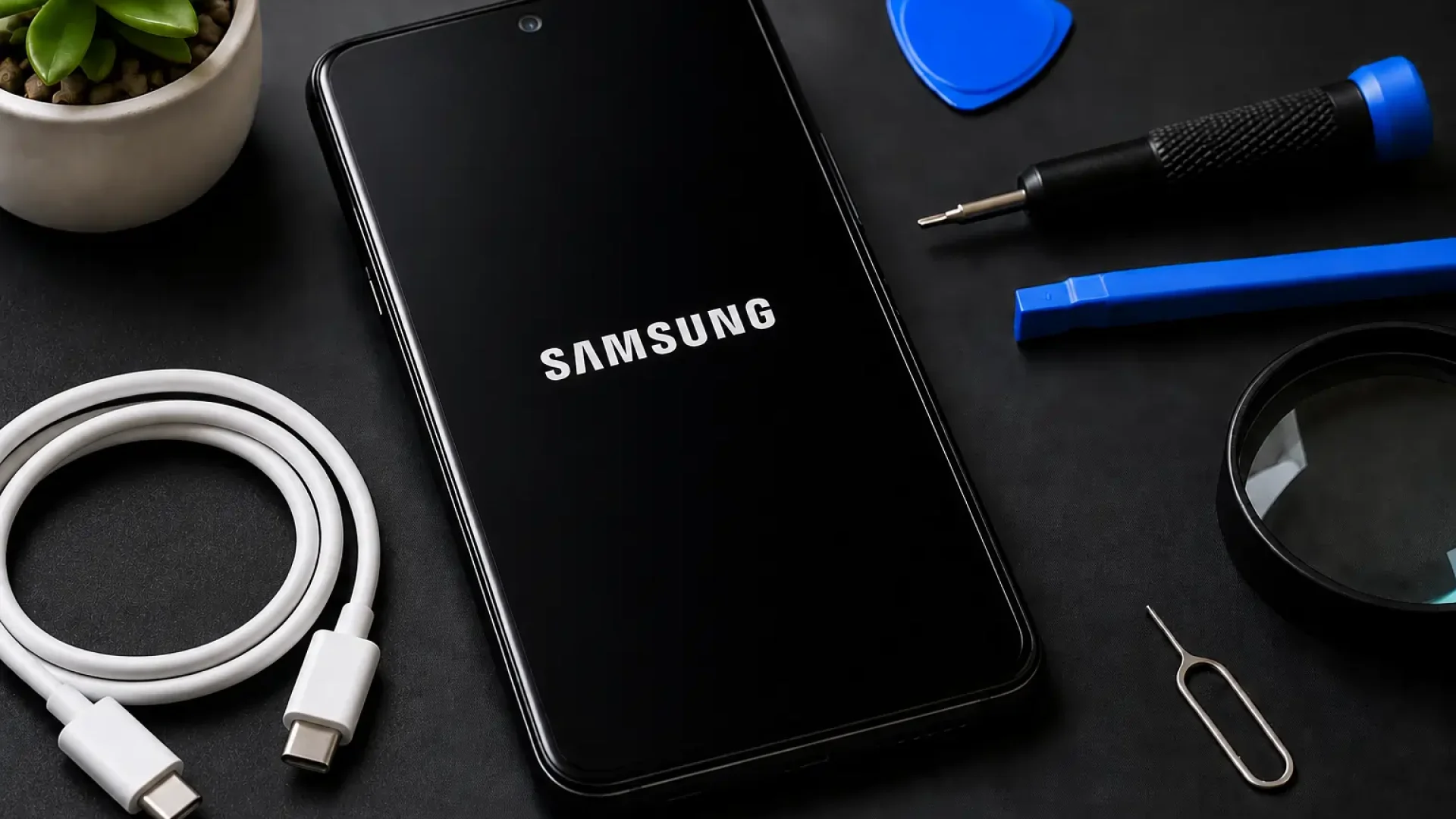
Why Would a Samsung Phone Suddenly Stop Turning On?
Before you can fix the problem, it helps to understand what might be causing it. There is no single answer, but most cases fall into one of three categories.
Software and System Issues
Sometimes the operating system crashes or gets stuck in a loop during an update. If your phone was updating Android when it lost power, or if an app caused a system conflict, the device may appear completely dead even though the hardware is perfectly fine. This is sometimes called a “soft brick,” and it is more common than most people realise.
Battery and Charging Problems
A completely drained battery will not respond to the power button at all. Many people assume their phone is broken when really the battery just needs time to charge from an extremely low state. Faulty charging cables, damaged charging ports, or a swollen battery can also cause your Samsung to refuse to power on.
Hardware Damage
If your phone has been dropped, exposed to water, or subjected to physical pressure, internal components like the display, motherboard, or power button itself may be damaged. In these cases, the phone might actually be running in the background, but the screen simply cannot display anything.
Overheating
Samsung phones have built-in thermal protection. If the device overheats beyond a safe temperature, it can shut itself down and refuse to restart until it has cooled sufficiently.
Step by Step: How to Fix a Samsung That Won't Turn On
Work through these steps in order. Start simple before assuming the worst.
Step 1: Force Restart Your Samsung
This is always the first thing to try. A force restart does not delete any of your data. It simply cuts the power and reboots the device.
For most modern Samsung Galaxy phones, press and hold the Volume Down button and the Power button at the same time for about 10 seconds. You should feel a vibration and see the Samsung logo appear.
For older Samsung models with a removable back cover, simply remove the battery, wait 30 seconds, and reinsert it before turning the phone on again.
Step 2: Charge Your Phone Properly
If the force restart does not work, plug your phone into a wall charger using the original Samsung cable and adaptor. Do not use a laptop USB port, as the power output is often too low. Leave it connected for at least 30 minutes without pressing any buttons.
If the battery is critically drained, you may see a small red battery icon appear on the screen after a few minutes. That is a good sign. Once it shows some charge, try the force restart again.
Step 3: Check Your Charging Equipment
Try a different charging cable and a different wall adaptor. Cables fray on the inside even when they look fine on the outside. If you have access to a wireless charger, try that as well, since it bypasses the charging port entirely. If the phone charges wirelessly but not with a cable, your charging port may be damaged or clogged with lint.
Step 4: Boot Into Safe Mode or Recovery Mode
If your phone powers on but gets stuck on the Samsung logo or keeps restarting, you may need to access recovery mode.
To do this, hold down the Volume Up button and the Power button at the same time while the phone is off. Keep holding until you see the Android recovery screen. From here, you can try wiping the cache partition, which clears temporary system files without touching your personal data, making it one of the safest data recovery solutions when you are trying to fix startup issues without losing important files. This often resolves software glitches that prevent normal startup.
If you see the option to wipe the cache partition, select it using the volume buttons to navigate and the power button to confirm.
Step 5: Check for Physical Damage
Inspect your phone closely. Look for cracks, water damage indicators (usually a small pink or red sticker near the SIM tray), or any warping around the back cover that might suggest a swollen battery. Swollen batteries are a safety concern and should be addressed by a professional immediately.
Step 6: Try Samsung’s Smart Switch or Find My Mobile
If your phone shows up as connected to Wi-Fi or mobile data but the screen is dark, Samsung’s Find My Mobile service may let you send a remote unlock command or check if the device is online. Similarly, if the phone partially powers on and connects to a computer, Samsung Smart Switch software can help you back up your data before any further troubleshooting.
How to Recover Your Data When the Phone Won't Start
This is what most people are really worried about, and understandably so. Here is how to approach data recovery depending on your situation.
If your Samsung account was active and syncing, your contacts, photos, calendar events, and even some app data are likely already saved to Samsung Cloud or Google Drive. Log in from another device or a browser to check what is there.
If your photos were being backed up to Google Photos, they are safe and accessible from any device using the same Google account.
If you had your phone connected to a computer previously via Smart Switch, a backup may already exist on that computer.
If none of the above applies, a professional repair technician can often access the phone’s storage directly using specialised tools, even if the screen or main board is partially damaged. Data recovery is not always guaranteed, but it is worth pursuing before assuming everything is lost.
When to Seek Professional Repair
There are some situations where home troubleshooting is not enough, and pushing further can actually make things worse.
You should see a technician if your phone shows signs of water damage. Attempting to charge a water-damaged phone before it is properly dried and inspected can permanently short-circuit internal components.
You should also seek professional help if the device is physically cracked or bent, if you can smell burning or see any swelling around the battery, or if the phone goes through repeated restart cycles without ever reaching the home screen after you have tried the steps above.
A qualified repairer can run diagnostic tests, replace a faulty battery, repair charging ports, and in many cases, recover data from phones that appear completely unresponsive.
Real Situations Where Phones Were Recovered
A woman in Queensland reported that her Samsung Galaxy S21 went completely dark after a failed software update overnight. She assumed it was dead and nearly bought a replacement. After learning about recovery mode, she wiped the cache partition and the phone restarted perfectly, with all her data intact.
A small business owner in South Australia left his Samsung in a hot car during the summer. The phone overheated and refused to start. After letting it cool in an air-conditioned room for an hour and then performing a force restart, it came back on without issue.
These are not unusual cases. They highlight how often the problem is not as serious as it first appears.
Frequently Asked Questions
Q: Can a Samsung phone be fixed if it will not turn on at all?
A: Yes, in most cases it can. The issue is often a drained battery, a software crash, or a minor hardware fault that a technician can repair.
Q: Will I lose my data if I force restart my Samsung?
A: No. A force restart simply cuts and restores power. It does not erase any apps, photos, messages, or settings.
Q: How do I know if my Samsung battery is dead or if the phone itself is broken?
A: Try charging for 30 minutes with a known good cable, then attempt a force restart.
Q: What does it mean when my Samsung is stuck on the logo screen?
A: This usually indicates a software issue, often following an incomplete update or a corrupted system file.
Q: Is it safe to use third-party data recovery software?
A: Some reputable tools exist, but be cautious. Many apps that claim to recover phone data require root access or can cause further damage if used incorrectly.
Q: How long does a Samsung phone repair usually take?
A: Simple repairs like battery replacement or charging port repair typically take one to two hours at a qualified repair shop.
Protecting Your Phone After Recovery
Once your Samsung is back up and running, take a few minutes to set up automatic backups so you are never in this position again. Enable Samsung Cloud backup in your settings, turn on Google Photos backup, and consider using Smart Switch to create a full local backup to your computer every few months.
Use a quality protective case and avoid leaving your phone in hot vehicles or direct sunlight for extended periods. Keep your software updated, as many Android updates include important stability and security fixes that prevent the kinds of crashes that lead to phones refusing to start.
A Note on Getting Help in Adelaide
If you have worked through all of the steps above and your Samsung still will not turn on, or if you are not comfortable attempting recovery mode on your own, getting a professional assessment is the smartest next move.
Sam Phone Repair, located in Adelaide, Australia, offers tech repair services for Samsung devices across a range of models. If you are in the Adelaide area and dealing with a phone that will not power on, a quick visit could save you the cost of a replacement and get your data back safely.
Your phone and everything on it matter. Do not give up on it before speaking to someone who can take a proper look.