

You are sitting at your desk, minding your own business, and then out of nowhere, your laptop starts acting strange. Maybe the screen flickers. Maybe an app crashes for no reason. Perhaps your cursor freezes for a few seconds, or your Wi-Fi drops and reconnects on its own. The frustrating part? You did not install anything new. You did not update anything. You did not even change a single setting.
This is one of the most common and confusing experiences laptop users go through. When something breaks after you change it, you know where to look. But when glitches appear out of thin air, it feels like your laptop is haunted. The good news is that there are real, logical, and well-understood reasons behind this behaviour. Understanding them helps you fix the issue faster and prevents bigger problems down the track.
What Exactly Is a Software Glitch?
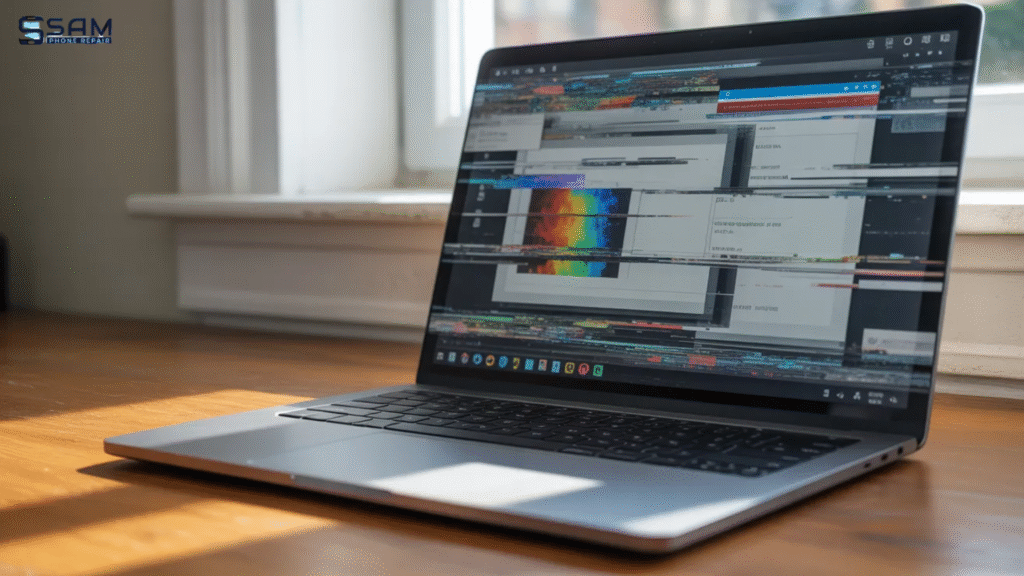
A software glitch is any unexpected behaviour your laptop shows that was not intentional. This includes screen freezing, unexpected restarts, application errors, slow performance, unresponsive keyboard or touchpad, corrupted files opening incorrectly, and programs crashing mid-use. In many cases, users start considering laptop repairs when these issues become frequent or difficult to manage.
The word “random” is key here. These glitches do not follow a pattern you can easily predict. They come and go, which makes diagnosing them even harder. Many users in Australia and around the world report that their laptops started glitching without any recent installs, which leads to the assumption that the device is simply dying. In most cases, that is not true at all.
Why Do Glitches Happen Even Without Recent Changes?
Here is where things get genuinely interesting.
Background System Updates You Did Not Notice
Windows and macOS both run silent updates in the background. Driver patches, security updates, and system configuration changes can be installed automatically while your laptop is idle or charging. You wake up the next morning, open your laptop, and something feels different. Technically, something did change. You just were not aware of it. Microsoft reported that many user-reported glitch spikes coincide with Patch Tuesday, the monthly cycle where Windows pushes security updates automatically.
Thermal Stress and Hardware Ageing
Your laptop generates heat every single time you use it. Over months and years, the internal components expand and contract with temperature changes. This process, called thermal cycling, gradually wears down solder joints on the motherboard, loosens connections, and degrades the performance of memory chips. Even if you never dropped your laptop or spilt anything on it, the simple act of using it regularly causes microscopic physical changes inside. These changes often trigger software-level glitches because the CPU or RAM cannot maintain stable communication with the rest of the system.
A common real-world example is the 2011 MacBook Pro GPU failure. Apple acknowledged that thermal stress caused the graphics chip to lose connection with the motherboard, producing random freezes and visual artefacts. No user had done anything wrong. No changes had been made. The hardware had simply aged under normal use.
Memory Leaks in Long-Running Applications
RAM, or random access memory, is your laptop’s short-term memory. When you open a browser with 20 tabs, a video call app, a PDF editor, and a music player all at once, each program uses a portion of RAM. The problem is that some applications have what developers call a memory leak, where they slowly consume more RAM over time without releasing it when they are done. If you leave your laptop running for days without restarting, available memory shrinks until the system starts stuttering, freezing, or behaving erratically. You made no changes. The glitch was simply the result of accumulated memory pressure.
Corrupt System Files Triggering Errors
Operating systems rely on thousands of system files working together in perfect coordination. A sudden power cut, a forced shutdown during an update, or even a bad sector developing on your hard drive can corrupt one or more of these files. Once corrupted, they cause unpredictable errors that seem completely random because the damage is hidden beneath the surface. You might notice applications crashing, error codes appearing, or your startup process behaving strangely.
Background Processes and Conflicting Software
Even when you are not actively using your laptop, dozens of background processes are running. Antivirus scans, cloud sync services, scheduled diagnostics, and app update checkers all compete for processing power. Occasionally, two background processes conflict with each other, causing one to malfunction. This type of software conflict shows up as a glitch that looks random because you cannot see the processes fighting each other behind the scenes.
Failing Storage Drive
A hard drive or SSD that is starting to fail will often produce glitches long before it completely stops working. You might notice programs taking longer to load, files becoming unresponsive, or your system hanging for several seconds. These are early warning signs of read/write errors on your storage device. Because modern drives have built-in error correction, they mask the early failures well, which is why the glitches can seem random and inconsistent.
Practical Troubleshooting Steps You Can Try at Home
Restart your laptop properly. A full restart, not just closing the lid, clears RAM, ends background processes, and refreshes system connections. This alone fixes a surprisingly large number of random glitches.
Check for pending updates manually. Go into your system settings and look for any updates that might be queued or partially installed. Completing those updates often resolves the instability.
Run a disk health check. On Windows, use the built-in CHKDSK tool to scan your drive for errors. On a Mac, use Disk Utility and run First Aid. These tools identify and sometimes repair file system corruption.
Monitor your system temperature. Download a free tool like HWMonitor on Windows or iStatMenus on Mac to check your CPU and GPU temperatures. If your laptop is running hotter than 85 to 90 degrees Celsius under normal use, poor ventilation or a failing fan could be causing thermal throttling, which looks like random slowdowns.
Check your RAM. Windows users can run the built-in Windows Memory Diagnostic tool. On a Mac, run Apple Diagnostics by holding the D key during startup. Faulty RAM produces a wide range of strange behaviours that are easily mistaken for software problems.
Free up startup applications. Too many programs launching at startup bog down your system before you even open a single app. On Windows, open Task Manager and disable unnecessary startup items. On Mac, go to System Settings and manage your Login Items.
When to Seek Professional Help
Some situations go beyond what a home troubleshooter can safely fix. If your laptop is showing any of the following signs, it is worth having a qualified technician look at it:
The glitches are getting worse over time rather than improving. You are seeing visual artefacts like coloured lines, screen flashing, or parts of the display going black. Your laptop is making unusual clicking or grinding sounds. It shuts down on its own regularly, especially during moderate tasks. The device overheats to the point where it is uncomfortable to touch.
These symptoms often point to hardware-level problems that need physical inspection and repair.
Frequently Asked Questions
Q: Can a laptop glitch without any hardware problem?
A: Yes. Software conflicts, memory leaks, corrupt system files, and background update processes can all cause glitches on a laptop that has perfectly healthy hardware.
Q: Does restarting a laptop fix random glitches?
A: Restarting clears memory, closes background processes, and re-establishes system connections. It resolves many common glitches, but not issues caused by hardware failure or deep file corruption.
Q: How do I know if my laptop glitch is hardware or software?
A: If glitches disappear after a restart and stay away for a while, it is likely software. If they return quickly, worsen over time, or involve visual distortion and unexpected shutdowns, hardware is more likely involved.
Q: Why does my laptop glitch more when it is hot?
A: Heat causes components to expand and can trigger thermal throttling, where the CPU deliberately slows down to protect itself. Sustained high temperatures also accelerate hardware degradation over time.
Q: Can a failing hard drive cause random software glitches?
A: Yes. A drive with developing bad sectors struggles to read and write data correctly, causing application errors, system hangs, and file corruption that all appear as random glitches.
The Bottom Line
Random laptop glitches are rarely as mysterious as they feel in the moment. Behind every unexpected freeze, crash, or screen flicker is a logical cause, whether it is a background update, ageing hardware, memory pressure, or a struggling storage drive. The key is knowing how to look in the right places and understanding when the problem is beyond a DIY fix. In such cases, visiting a reliable tech repair shop can help identify and resolve the issue efficiently.
If you are based in Adelaide and your laptop continues to misbehave after trying these steps, the team at Sam Phone Repair, located across Adelaide, South Australia, can carry out a thorough diagnostic and get your device back to reliable working order.