

Every year, Apple rolls out massive software updates that completely transform how we use our mobile devices. From security patches that block cyber threats to exciting design refreshes, battery enhancements, and intelligent system features, keeping your operating system current is the single best way to ensure a smooth mobile experience.
Yet, for many everyday users across Australia, clicking that “Install Now” button can feel stressful. You might worry about your phone freezing, losing precious family photos, or running out of storage space halfway through the download. If you have ever stared at a “Checking for Update” wheel that spins forever or felt frustrated by an unexpected error message, you are not alone.
This comprehensive, straightforward guide will take you through the entire process safely.
The Value of iOS Updates: Why Keeping Current Matters
Have you noticed your smartphone running slower or the battery draining faster than usual? Over time, application developers update their software to work with Apple’s newest system code. If your device is running old software, it has to work twice as hard to run modern applications.
This extra strain leads to overheating, sluggish app performance, and sudden battery drops. Staying updated ensures your device receives the latest efficiency tunes, keeping your overall iPhone performance strong and reliable. However, if performance issues continue even after updating, professional iPhone repairs may be necessary to identify underlying battery, charging, or hardware-related faults.
Enhanced Security Protections
Cybersecurity threats evolve constantly. Hackers frequently look for vulnerabilities (weak spots) in older mobile operating systems to access personal data, passwords, or banking details. Apple regularly patches these security holes in its latest releases. Running an outdated operating system leaves your digital identity exposed to modern exploits.
Optimised Performance and Battery Life
Have you noticed your smartphone running slower or the battery draining faster than usual? Over time, application developers update their software to work with Apple’s newest system code. If your device is running old software, it has to work twice as hard to run modern applications.
This extra strain leads to overheating, sluggish app performance, and sudden battery drops. Staying updated ensures your device receives the latest efficiency tunes, keeping your overall iphone performance faster than previous models.
Access to New System Features
Every major release introduces intuitive tools that make life easier. Whether it is a smarter predictive keyboard, better translation tools, organised notification centres, or advanced privacy settings that stop apps from tracking your web movements, updating your device breathes new life into your current hardware. It feels like getting a brand-new phone without spending a single cent.
Essential Checklist: Pre-Update Preparations
To prevent data loss or a failed installation, you must prepare your smartphone before starting. Taking five minutes to run through this pre-update checklist guarantees a seamless transition.
1. Verify Device Compatibility
Apple supports older models for a remarkably long time, usually around five to six years. However, older generations eventually phase out because their internal processors lack the power to handle modern features. For instance, recent major releases like iOS 17 and iOS 18 require an iPhone XR, iPhone XS, or newer models. If you are using an older device like an iPhone 8 or iPhone X, your system will top out at the maximum version of iOS 16. Checking your model number in your settings ensures your phone can actually handle the file you want to download.
2. Create a Secure Data Backup
This is the most critical step. While errors are rare, a sudden drop in internet connection or an unexpected system crash during installation can corrupt your data. You must back up your phone beforehand so your photos, messages, contacts, and app data remain completely safe.
- iCloud Backup: Connect to a local Wi-Fi network. Go to your Settings application, tap your name at the very top, select iCloud, then tap iCloud Backup, and select “Back Up Now”. Keep your device connected to Wi-Fi until the process finishes.
- Computer Backup: If you do not have enough iCloud storage space, plug your phone into a computer. Open iTunes (on Windows or older Mac computers) or Finder (on modern Mac systems), select your device, choose “Back up all of the data on your iPhone to this Mac/PC”, and click “Back Up Now”.
3. Clear Adequate Storage Space
Major system upgrades are large files, often weighing between 4GB and 6GB. Furthermore, your device needs extra temporary working space to unpack and install those files. If your internal memory is full, the download will fail or refuse to start. Go to Settings, tap General, and select iPhone Storage to see what is taking up space. You can quickly free up room by deleting old videos, removing apps you no longer use, or clearing out cached files.
4. Check Power and Network Stability
A system installation requires a reliable power supply and a steady internet connection. If your phone powers down mid-installation, it can corrupt the core operating system, leaving you with a blank screen. Ensure your phone is charged to at least 50% before starting, or better yet, plug it directly into a wall charger. Additionally, always use a private, stable home Wi-Fi network rather than weak public hotspots or unstable mobile data.
How to Update Your iPhone (The Step-by-Step Guide)
There are two primary ways to upgrade your device: wirelessly over the air (directly on the phone) or using a computer. The wireless method is the most popular and convenient option for everyday users.
Method 1: Updating Wirelessly Over-the-Air (OTA)
This direct method is quick, straightforward, and can be completed entirely on your smartphone without any external cables.
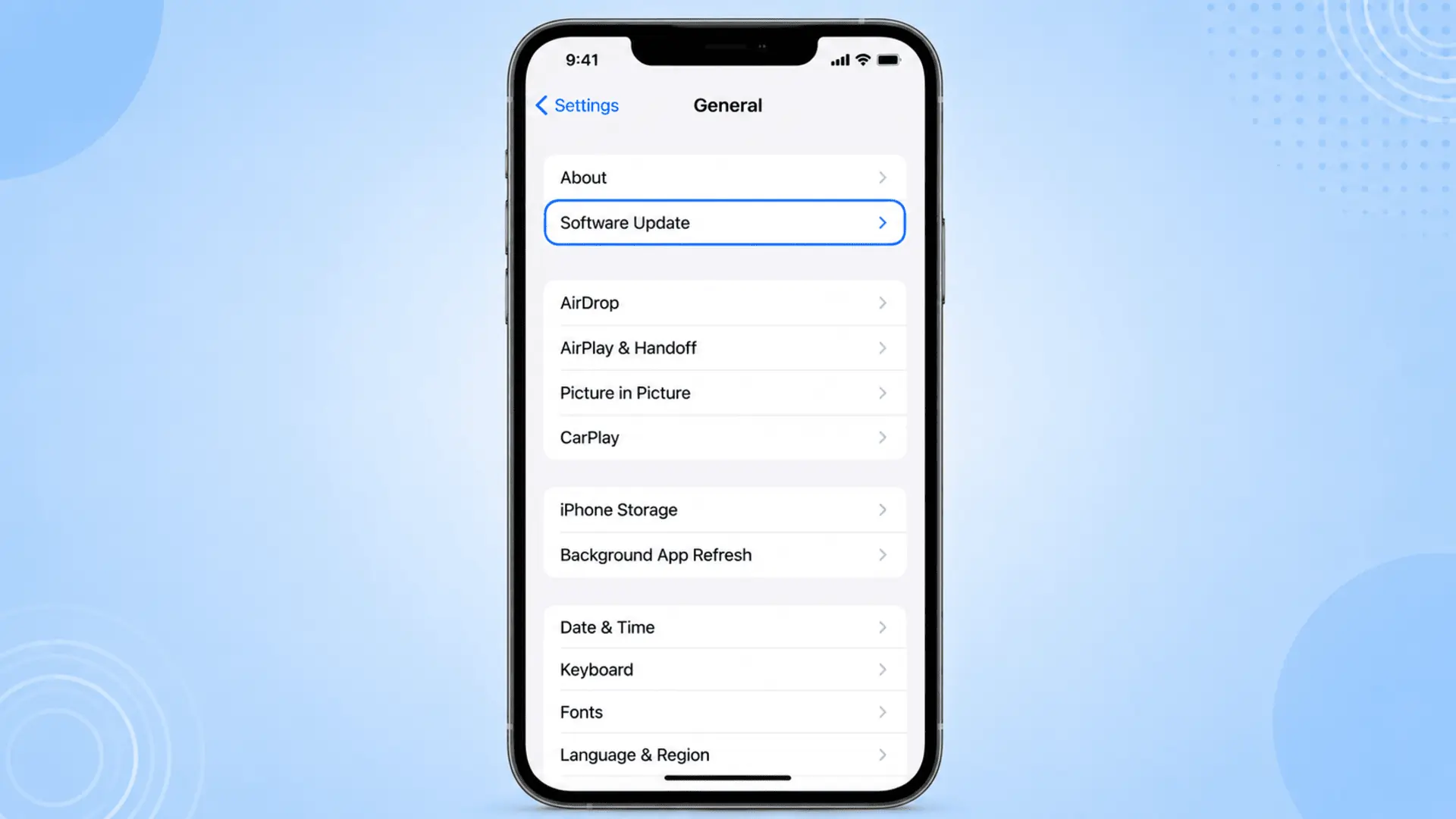
[Open Settings App] ➔ [Tap General] ➔ [Select Software Update] ➔ [Tap Download and Install]
- Connect to Wi-Fi and Power: Plug your device into a power outlet and ensure you have a strong connection to your local wireless internet.
- Navigate to the Update Menu: Open your grey Settings app. Scroll down slightly and tap General, then select the second option from the top: Software Update.
- Check for Available Software: Your screen will display a spinning wheel for a few moments while it communicates with Apple’s global servers. Once done, it will show the latest available version details.
- Initiate the Download: Tap the Download and Install button. If your phone uses a secure lock screen passcode, you will be prompted to type it in now.
- Accept the Terms: Read through the official Terms and Conditions agreement and tap Agree in the bottom right corner to
proceed. - Wait for the Process to Complete:Your device will now download the file. A progress bar will show you an estimated remaining time. Once the download finishes, the phone will prepare the file and automatically restart. The screen will turn black and display the white Apple logo alongside an installation line. Do not touch any buttons until the phone boots back up to your regular lock screen.
Method 2: Automatic Background Updates
If you prefer not to manage this process manually, you can instruct your device to handle everything automatically overnight while you sleep.
- Go to Settings, select General, and tap Software Update.
- Tap the Automatic Updates option at the top of the menu.
- Toggle on the switches for Download iOS Updates and Install iOS Updates.
When these settings are active, your phone will quietly download new software files in the background. Then, overnight, provided your phone is plugged into a charger, locked, and connected to Wi-Fi, it will install the update seamlessly without interrupting your day.
Why Is My iPhone Not Updating? Causes and Solutions
Sometimes, even when you follow every instruction perfectly, things can go wrong. If your screen displays an error message like “Unable to Verify Update”, “An Error Occurred Downloading iOS”, or if the progress bar simply stops moving altogether, you need to troubleshoot the problem. Let us look at the common technical causes behind these issues and how to fix them.
Potential Cause | What is Happening Globally | Practical Solution to Try |
Insufficient Memory Space | The phone does not have enough room to unpack the new operating code. | Delete large video files or offload unused applications. |
Network Disconnection | The wireless internet signal dropped out or lost connection mid-stream. | Reset your network settings or restart your home router. |
Server Overload | Millions of global users are downloading files simultaneously on launch day. | Wait a few hours and try again when server traffic decreases. |
Software Freeze | A temporary background system bug is locking up the upgrade engine. | Perform a hard force-restart to clear out the temporary cache memory. |
Degraded Battery Cell | The hardware power supply cannot hold a stable current during installation. | Keep the phone connected directly to a reliable wall charger. |
Practical Troubleshooting Steps to Fix Installation Errors
If your iPhone continues to display update errors even after trying these troubleshooting steps, the issue may be related to deeper system faults that require professional software repairs. Expert diagnostics can identify corrupted system files and restore your device safely without risking your personal data.When to Seek Professional Hardware Repair
Step 1: Perform a Force Restart
A force restart clears out temporary software blockages without deleting any of your personal files. It acts as a quick system refresh.
- For models with Face ID (iPhone 8 or newer): Press and quickly release the Volume Up button. Press and quickly release the Volume Down button. Finally, press and hold the Side Power button continuously until the white Apple logo appears on the screen, then let go.
Step 2: Delete and Redownload the Installation File
If your internet dropped out for a moment, the downloaded file might be broken or incomplete. Removing the bad file lets you start fresh.
- Go to Settings, tap General, and select iPhone Storage.
- Scroll through the list until you find the specific iOS Update file icon.
- Tap on it and select Delete Update.
- Go back into the Software Update menu and start the download process again.
Step 3: Reset Network Settings
If your phone struggles to stay connected to Apple’s servers, resetting your network configuration can resolve hidden connectivity bugs.
- Go to Settings, choose General, and scroll down to the bottom to select Transfer or Reset iPhone.
- Tap Reset at the bottom, then choose Reset Network Settings.
- Note: This will wipe your saved Wi-Fi passwords, so you will need to type your home internet password back in once the phone boots up.
When to Seek Professional Hardware Repair
If you have tried every troubleshooting trick listed above and your device still refuses to update, or if it has frozen completely on a black screen with an Apple logo, the root cause might not be a simple software glitch. Instead, you could be dealing with an underlying hardware limitation or component failure.Practical Troubleshooting Steps to Fix Installation Errors
Warning Signs of Hardware Issues
- Severe Battery Degradation: If your maximum battery capacity has dropped below 80%, the cell may fail to deliver a steady voltage during intense system updates, causing the phone to shut down protectively. Understanding iphone seventeen battery deterioration causes can give you an idea of how chemical degradation directly compromises system stability.
- Internal Storage Failure: Over time, physical logic board storage sectors can degrade, making it impossible for the system to write new code safely.
- Unresponsive Touch Screen: A faulty display panel can prevent you from typing in your security passcode to authorise the installation process.
When your phone is completely unresponsive or if you feel uncomfortable handling complex data recovery steps on your own, getting hands-on help from a reliable technician is the safest path forward. For residents living in Adelaide, Australia, local experts can run physical diagnostic checks, test your internal battery health, repair broken screens, and use professional software restoration tools to bring a dead phone back to life.
If you need fast, high-quality, and dependable assistance to get your mobile phone working perfectly again, the team at Sam Phone Repair can diagnose and resolve these complex hardware and software issues safely without putting your private data at risk.
Frequently Asked Questions (FAQ)
Q: Can I use my phone while the new system is being installed?
A: You can use your device normally while the software file is downloading in the background. However, once you tap install and your phone restarts to show the progre
Q: How long does an iOS update take?
A: A standard update usually takes between 20 to 45 minutes to complete. This time depends heavily on your local home internet speed for the initial download, followed by roughly 15 to 20 minutes for the physical system installation and device restart.
Q: Will updating my iPhone delete my photos or text messages?
A: No, a standard software update changes your core system files while keeping your personal photos, contacts, apps, and messages completely intact. However, because unforeseen glitches can happen, you should always perform a full backup to iCloud or a computer before starting.
Q: Why does my iPhone screen say “Checking for Update” without moving?
A: This usually means your device has lost connection to the internet, or Apple’s verification servers are currently overloaded with heavy traffic. To fix this, turn your Wi-Fi connection off and on again, restart your phone, or try the process later in the day.
Final Words: Future-Proofing Your Device
Keeping your iPhone updated is about more than just accessing new emojis or design tweaks; it is an essential practice to safeguard your personal data, secure your digital identity, and keep your mobile hardware running efficiently for years to come. By making regular backups a habit and using the step-by-step methods outlined above, you can confidently navigate future releases without fear of losing your precious data or encountering unexpected system stalls.
Technology should make your life easier, not more stressful. Whenever a new software prompt appears on your screen, handle it with the proper preparation clear out your temporary files, connect to a strong home Wi-Fi network, and plug into a stable power source. With these simple precautions, your smartphone will remain fast, responsive, and secure.
Need Expert Support in Adelaide?
If you ever encounter a stubborn installation error, a frozen screen, or hardware issues like a worn-out battery that prevents your device from upgrading properly, do not stress. For residents across Adelaide, Australia, professional support is always close by. You can visit Sam Phone Repair for fast, reliable hardware diagnostics, battery replacements, and advanced data recovery services to get your mobile device back into perfect working order safely.