

BLOG
Picture this. You pick up your Google Pixel, press the power button, and instead of your home screen you see the Google logo again. And again. And again. Your phone is stuck in a loop, restarting itself over and over without ever fully turning on. This is called a boot loop, and if it is happening to you right now, take a breath. You are not alone, and in most cases your phone and your data can still be saved.
A Pixel boot loop is one of the most stressful phone problems a person can face. It is not like a cracked screen where you can still see what is going on. When your phone will not boot, you lose access to your photos, messages, banking apps, and everything else in one moment. That panic is real, and it is exactly why we put together this guide.
In this blog, we will walk you through what causes a Pixel boot loop, five tested fixes you can try at home, and when it is time to bring your phone to a professional repair technician instead of risking more damage. This guide is written in simple words so anyone can follow along, whether you are a student, a business owner, or someone who just wants their phone working again before an important call.
What Is A Boot Loop And Why Does It Happen A boot loop happens when your phone tries to start up, gets partway through the process, then crashes and restarts again. This cycle repeats endlessly. Sometimes you will see the Google logo flashing on and off. Other times the screen will go black, show the Pixel animation, then go black again. If the issue continues, seeking Google Pixel repair Adelaide services can help identify the underlying cause. Boot loops on Google Pixel phones usually come from one of four areas. Understanding which category your problem falls into helps you pick the right fix.
| Cause Category | What’s Going On |
|---|---|
| Software Related | A failed system update, corrupted OS file, or bad app installation confuses the phone during startup. An interrupted update (e.g. phone lost power mid-install) is a common trigger. |
| Hardware Related | A damaged battery, faulty charging port, water damage, or a loose internal connection after a drop. Usually harder to fix at home and often needs a trained technician. |
| Storage and Memory | Nearly full storage or a failing memory chip can stop the OS loading correctly. More common in older Pixel models used for several years. |
| Network and Account | A conflict with Google account sync settings, or a corrupted cache built up from an update over unstable Wi-Fi. Usually a software problem in disguise. |
Now that you understand the root causes, let us go through the five tested solutions, starting with the easiest and moving toward the more advanced steps.
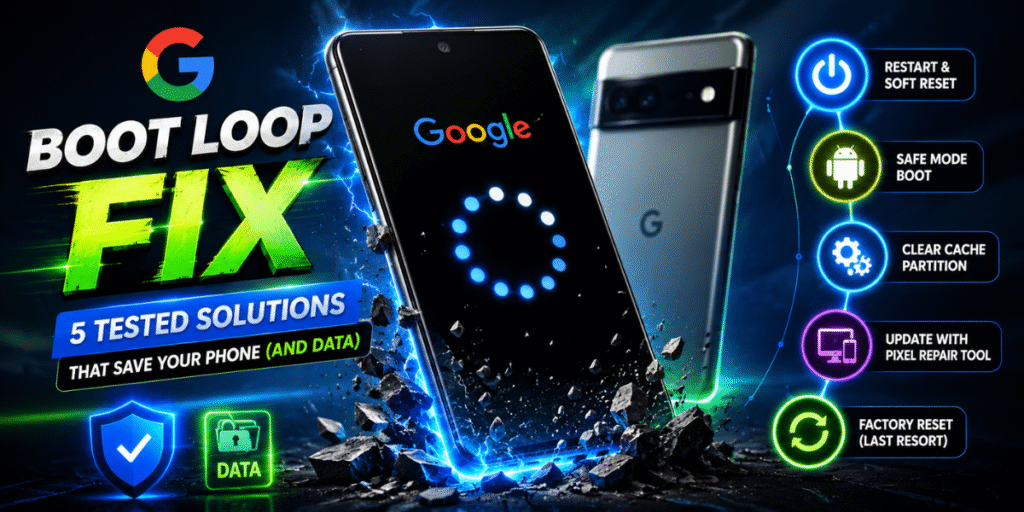
Solution 1: Force Restart Your Pixel
This is the simplest fix and it solves a surprising number of boot loop cases. A force restart clears temporary memory without deleting any of your data.
To do this, press and hold the power button and the volume down button at the same time for about ten to twenty seconds, until you feel a vibration or see the screen flicker. Let go and wait for your phone to restart normally.
Tip: Think of this like restarting a laptop that has frozen. It does not remove your files, it just gives the system a clean moment to try starting up again. Many users report their Pixel boots up normally right after this simple step, so always try it first before moving to anything more technical.
Solution 2: Boot Into Safe Mode To Check For App Conflicts
If a force restart does not work, the next step is safe mode. Safe mode starts your phone using only the built in system apps, temporarily switching off any third party apps you have installed. This helps you figure out if a recently downloaded app is causing the crash.
To enter safe mode on most Pixel phones, hold the power button until the power menu appears, then press and hold the power off option until you are asked to reboot into safe mode. Confirm, and your phone will restart in this limited mode.
If your Pixel boots up fine in safe mode, it likely means one of your apps is the culprit. Go into settings, check the apps you installed most recently, and uninstall anything you do not recognise or that you downloaded right before the boot loop began. Once removed, restart your phone normally to see if the issue is gone.
Solution 3: Clear The Cache Partition
Every Android phone, including Pixel devices, keeps a cache partition, which is a storage area used to speed up app loading. Over time this cache can become corrupted and cause startup problems.
Newer Pixel models handle cache clearing automatically through system updates, but if your phone is stuck in a loop, you can try booting into recovery mode.
Turn phone off completely
↓
Hold Power + Volume Down until bootloader screen appears
↓
Scroll to Recovery Mode (volume buttons), select with power button
↓
Choose “Wipe Cache Partition” and restart
Tip: This step does not erase your personal photos, messages, or app data. It only clears temporary system files, making it a safe option to try before anything more drastic.
Solution 4: Perform A Factory Reset (As A Last Resort)
If the steps above have not worked, a factory reset is often the next option. This wipes your phone completely and reinstalls the operating system fresh, which fixes almost every software related boot loop.
Warning: A factory reset erases everything on your phone, so this should be your last home based option, not your first. If your photos and files were not backed up to Google Photos, Google Drive, or another cloud service, you risk losing them permanently.
To factory reset a Pixel stuck in a boot loop, go into recovery mode the same way described in Solution 3, then select Wipe Data or Factory Reset from the recovery menu. Confirm your choice and wait for the process to finish, which can take several minutes.
If you are unsure whether your data was backed up, or if the thought of losing your photos and messages worries you, this is a good moment to stop and speak to a professional before proceeding, which brings us to our next point.
Solution 5: Reflash Or Repair The Firmware With Professional Tools
Sometimes a boot loop is caused by deeper firmware corruption that a simple factory reset cannot fix. In these cases, technicians use specialised tools to reflash the phone’s firmware, essentially reinstalling the core software at a level average users cannot access from their phone settings alone.
This process requires the correct firmware version for your exact Pixel model, a stable computer connection, and knowledge of how to avoid bricking the device (making it completely unusable) if something goes wrong midway. Because of the risk involved, this fix is best left to someone experienced with Android repair.
If your phone has hardware damage contributing to the boot loop, such as a swollen battery, water exposure, or a cracked motherboard connection, firmware reflashing alone will not solve the problem. A technician will need to inspect the physical components first.
When Should You See A Professional Instead Of Trying These Fixes Yourself
There is no shame in reaching out for expert help, especially when your data matters to you. Here are clear signs it is time to book a repair rather than continue troubleshooting on your own.
- Your phone shows physical damage, such as a cracked screen, water exposure, or visible swelling near the battery area
- You have already tried a force restart and safe mode with no improvement, and you are not comfortable performing a factory reset
- Your photos, documents, or business data on the phone were never backed up, and losing them is not an option
- The boot loop started right after your phone was dropped, got wet, or was exposed to extreme heat or cold
- You have tried multiple fixes and the phone still will not stay on for more than a few seconds
In these situations, a qualified repair technician can often recover your data before attempting any fix that risks erasing it, something that is very difficult to do safely at home without the right diagnostic equipment. This is also why you should not ignore Google Pixel battery issue, as battery faults can sometimes contribute to unexpected shutdowns, restarting issues, or boot loop behaviour.
How To Prevent Future Boot Loops
Once your phone is working again, a few simple habits can lower the chance of this happening a second time.
- Keep your phone updated, but only install updates when your battery is charged and your Wi-Fi connection is stable, since an interrupted update is one of the most common boot loop triggers
- Avoid installing apps from outside the Google Play Store, since these are more likely to contain corrupted or poorly built code
- Back up your photos and important files regularly using Google Photos or Google Drive, so that even in a worst case scenario your memories and documents are safe
- Keep at least ten percent of your storage free, since a phone that is completely full can struggle during system processes, including startup
- Handle your phone with care around water and extreme temperatures, since hardware stress is one of the leading physical causes of startup failure over time
Frequently Asked Questions
Q: What causes a Google Pixel to get stuck in a boot loop?
A: A boot loop is usually caused by a failed software update, a corrupted system file, a problematic app, low storage space, or in some cases physical hardware damage such as battery or water damage.
Q: Can I fix a Pixel boot loop without losing my data?
A: Yes, in many cases. A force restart, safe mode check, and cache partition clear can often fix a boot loop without erasing anything. A factory reset is the option that erases your data, so it should be tried only after the safer steps have failed.
Q: How long does a Pixel usually stay in a boot loop before it is unfixable?
A: There is no fixed time limit. Some phones boot loop for a few minutes before recovering, while others can loop for hours or indefinitely without the right fix. If your phone has been looping for more than thirty minutes with no change, it is a good sign that a deeper software or hardware issue is involved.
Q: Is a boot loop the same as a bricked phone?
A: Not exactly. A boot loop means your phone is trying to restart but cannot complete the process. A bricked phone is completely unresponsive and will not turn on or restart at all. A boot loop can sometimes turn into a bricked phone if fixes are attempted incorrectly, which is why care is important.
Q: Should I try a factory reset first?
A: No. Always try a force restart and safe mode first, since these do not erase your data. Save the factory reset for when nothing else works, and only proceed if your files are backed up or you are prepared to lose them.
Final Thoughts
A: A boot loop is usually caused by a failed software update, a corrupted system file, a problematic app, low storage space, or in some cases physical hardware damage such as battery or water damage.
A: Yes, in many cases. A force restart, safe mode check, and cache partition clear can often fix a boot loop without erasing anything. A factory reset is the option that erases your data, so it should be tried only after the safer steps have failed.
A: There is no fixed time limit. Some phones boot loop for a few minutes before recovering, while others can loop for hours or indefinitely without the right fix. If your phone has been looping for more than thirty minutes with no change, it is a good sign that a deeper software or hardware issue is involved.
A: Not exactly. A boot loop means your phone is trying to restart but cannot complete the process. A bricked phone is completely unresponsive and will not turn on or restart at all. A boot loop can sometimes turn into a bricked phone if fixes are attempted incorrectly, which is why care is important.
A: No. Always try a force restart and safe mode first, since these do not erase your data. Save the factory reset for when nothing else works, and only proceed if your files are backed up or you are prepared to lose them.
A Google Pixel boot loop feels overwhelming at the moment, but most cases can be resolved by working through these steps in order, starting with the simplest and safest options first. Force restart, safe mode, cache clearing, factory reset, and professional firmware repair each solve a different layer of the problem, from minor software hiccups to deeper system corruption.
If you have tried everything and your Pixel still will not boot properly, or if you simply do not want to risk your data trying these steps alone, reaching out to a trusted local repair service is always a smart move. Your phone holds more than just apps, it holds your memories, your work, and your connections to people who matter, and that is worth protecting properly.
If you are comparing local repair options in Adelaide, you can view our business profile on Google to check recent customer experiences, business updates, and directions before deciding on your next step.